
More and more often, a colleague asks: “Where are you working today? Remote or at the office?” Of course, you can send a quick message in Teams, but you don’t have to. Many organizations look for separate apps or online tools to share this information, while the solution already exists inside Microsoft 365.
Outlook, Teams and other Office applications include built‑in functionality to share your work location. This allows you to show whether you’re working from home, at the office, or on the road—without installing anything extra. Colleagues will automatically see your location when they check your calendar or schedule a meeting.
The problem
Colleagues want to know in advance where you’re working so they know whether they can meet you in person, need to plan a hybrid meeting, or should coordinate remotely. This is often shared ad‑hoc through chat messages, which is messy and leads to misunderstandings. Someone might assume you’re on‑site while you’re actually at home, or vice versa.
The “Work location” feature in Outlook solves this instantly—without requiring additional apps.
How to set your work location in Outlook
- Open Microsoft Outlook on your desktop.
- At the top of the menu bar, look for the “Work location” button.Click “Work location” and choose an option, such as Home, Office, or another available location. See picture 1. Outlook menu.
- Outlook immediately updates your status and shows it in your calendar. Colleagues will see this when they schedule a meeting with you.
- You can set this per day or create recurring patterns, for example: Monday home, Tuesday–Thursday office, Friday flexible.

Figure 1. Outlook menu
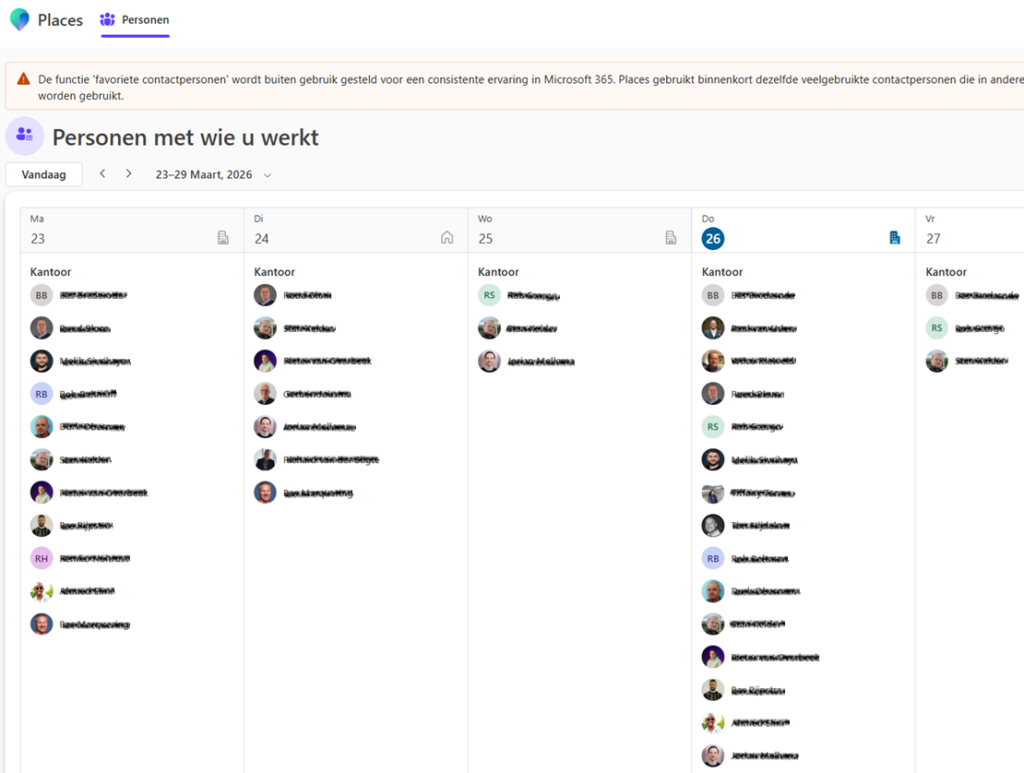
Figure 2. Persons I work with & work location
This setting also appears in Microsoft Teams and other Office apps connected to your calendar, so colleagues always know where you are—without you having to share it manually each time.
Why this is useful
It enables better coordination, reduces misunderstandings, improves meeting planning and supports a more professional way of working. And the best part: it’s already available in the tools you use every day.