The customer wants to be able to browse through the items in a gallery using buttons in a Canvas app. A gallery has a method for retrieving the selected item; this is the active (selected) item in the gallery. However, the connected data source doesn’t offer standard functions like “previous” or “next.”
Although the underlying table contains a field with unique values, this value isn’t easily used to determine the previous or next item.
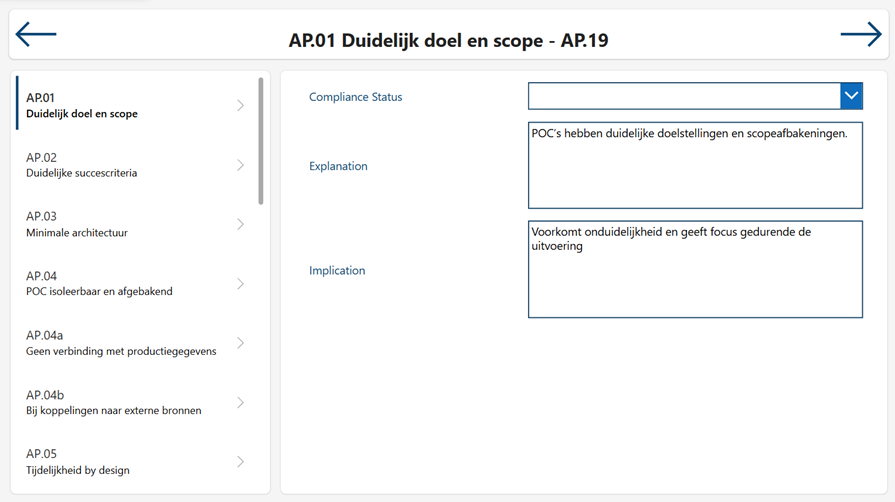
Demo table
The structure of the demo table is as follows:
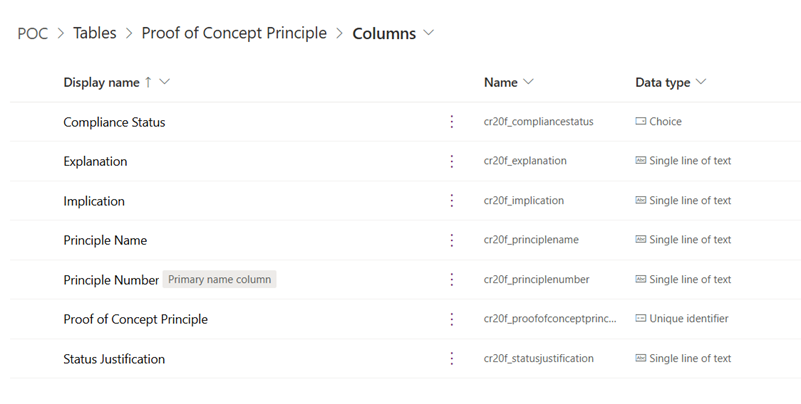
Additional field for navigation
The solution is to expand the table with an automatically numbered field. This field can then be used to easily find the next/previous item.

Named Formulas
An easy way of getting the next / previous value is to call for a named formula. The formula can be called from any place in the Canvas App. Copy the following formulas in: > App > Formulas
POCNext(number:Number):Text =
    With(
        {
            idx: LookUp(colPrinciples, Number = number, 'Principle Number') // 'Principle Number' is unique key
        },
        If(
            IsBlank(idx),
            Blank(),
            Last(
                FirstN(
                    colPrinciples,
                    Mod(
                        CountIf(colPrinciples, Number <= number) + 1,
                        CountRows(colPrinciples)
                    ) + 1
                )
            ).'Principle Number'
        )
    );


POCPrevious(number:Number):Text =
    With(
        {
            idx: LookUp(colPrinciples, Number = number, 'Principle Number')
        },
        If(
            IsBlank(idx),
            Blank(),
            Last(
                FirstN(
                    colPrinciples,
                    Mod(
                        CountIf(colPrinciples, Number <= number) - 1 + CountRows(colPrinciples),
                        CountRows(colPrinciples)
                    ) + 1
                )
            ).'Principle Number'
        )
    );
Canvas App Methodes
After the table has been modified, code needs to be added in the Canvas App.
App.OnStart
// Load all principles and sort by 'Number' so that navigation is predictable
ClearCollect(
    colPrinciples,
    SortByColumns(
        'Proof of Concept Principle',
        "bjo_number",
        SortOrder.Ascending
    )
);


Wizard Screen.OnVisible
// Initializes the current selection to the first item
UpdateContext({
    currentPrincipleNumber: First(colPrinciples).'Principle Number',
    currentNumberText:      First(colPrinciples).Number,
    selectedGalleryItem:    First(POCGallery.AllItems)
});

Wizard Screen.Arrow.OnSelect
// Determine the next 'Principle Number' based on currentNumberText
UpdateContext({ _nextPN: POCNext(currentNumberText) });

// Set both the unique key and the corresponding Number text
UpdateContext({
    currentPrincipleNumber: _nextPN,
    currentNumberText:      LookUp(colPrinciples, 'Principle Number' = _nextPN).Number
});

UpdateContext({
    selectedGalleryItem:    Index(POCGallery.AllItems, currentNumberText)
});