Introduction
If you spend a lot of time working in Visual Studio Code, you’ve probably run into moments where the text feels just a bit too small—or perhaps too large—depending on your screen, resolution, or setup. Adjusting font sizes manually works, but there’s a much smoother and more intuitive way to handle this: zooming with your mouse wheel.
By enabling this feature, you can quickly zoom in and out of your editor, just like you would in a web browser. It’s especially useful when switching between monitors, collaborating with colleagues, or presenting code during a meeting. Once it’s turned on, you’ll wonder why it wasn’t enabled by default.
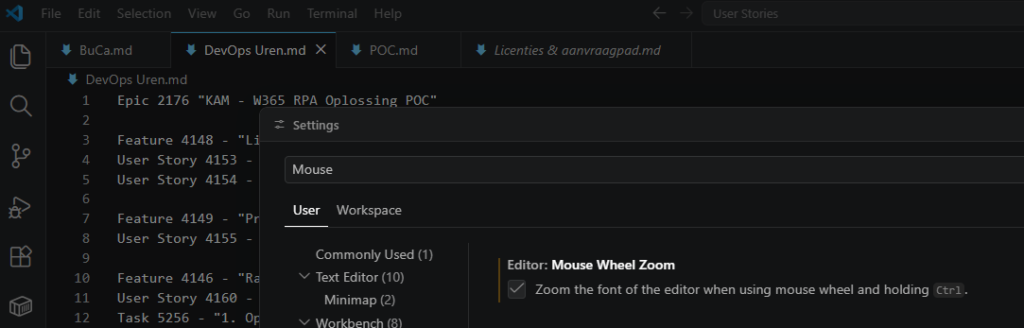
How to enable mouse wheel zoom
To activate this feature, follow these steps:
- Go to File → Preferences → Settings
- Search for “mouse wheel scroll”
- Enable Editor: Mouse Wheel Zoom
That’s it. After enabling the option, you can hold Ctrl (on Windows or Linux) while scrolling with your mouse wheel to smoothly zoom in or out of your code.
If you ever zoom too far in or out, you can quickly return to the default zoom level with Ctrl + 0 or Cmd + 0.