
Many users switching to Power Automate’s new designer wonder the same thing:
“Where do I paste an action I copied?”
This confusion is understandable — the Paste action command doesn’t appear in the Add an action panel. Instead, pasting is done directly from the flow canvas, using contextual menus.
This blog explains exactly how to copy and paste actions, with illustrated examples.
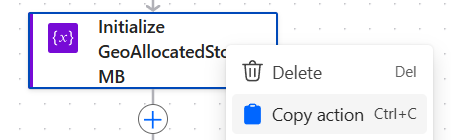
Copying an Action
Before you can paste an action, you need to add it to your clipboard.
- Open the three‑dot menu (…) of the action you want to copy.
- Select Copy to clipboard.
Where to Find the Paste Action Command
This is the part that trips up most users.
When you click Add an action, you will not see a paste button there.
This is expected behavior — the Add action panel only shows connectors.
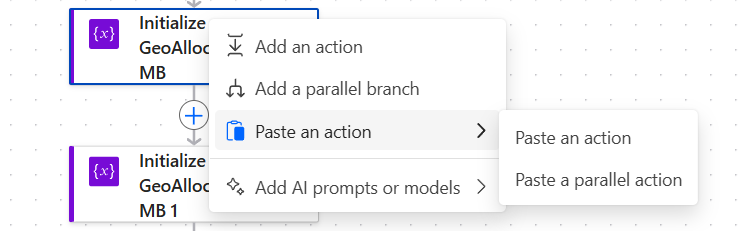
Instead, pasting is done from the canvas itself.
Here is a visual showing the correct location:
Why Paste Doesn’t Appear in the Add Action Panel
Because Microsoft redesigned the flow builder to make copying and pasting a canvas‑based operation, not an action search operation.
Therefore:
- The Add an action window shows connectors
- The canvas controls contextual features such as paste, branching, or inserting steps
Once you know this, it becomes much easier to work with repeated steps or template structures.